Hunter Douglas PowerView® Gen 3 Shades: Owner’s Use & Care Guide
Written by: Armi Avila
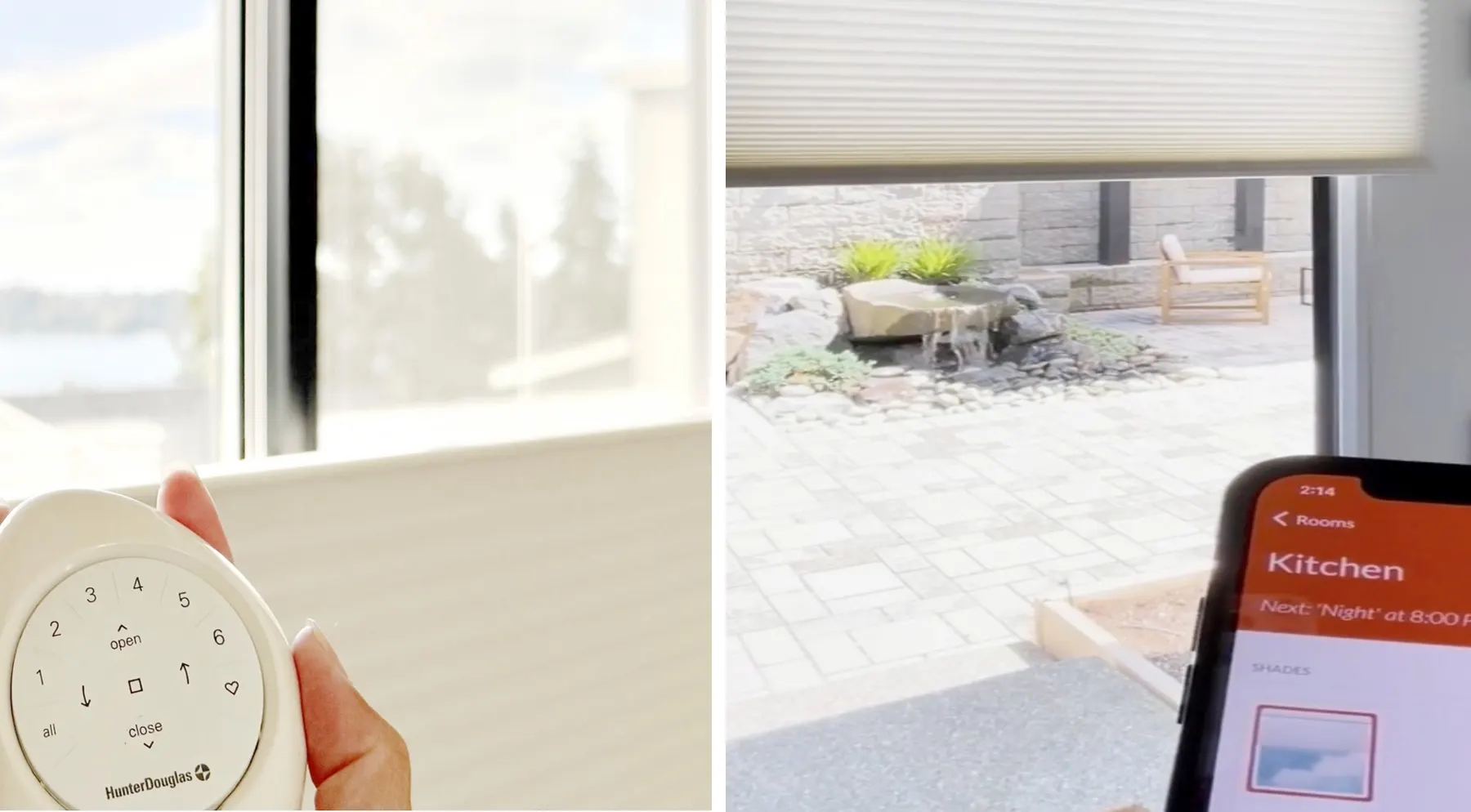
Congratulations on your new Hunter Douglas PowerView® shades. PowerView shades can be operated with the PowerView app or remote, while the optional Gateway allows smart-home integrations and off-site operation.
This owner’s guide explains how to prepare for installation, use your PowerView controls, understand your shade’s power source, and find answers to common questions.
In this guide, we cover:
- Preparing for Your PowerView Shade Installation
- On the Day of Your PowerView Shade Installation
- Operating Your PowerView Shades
- Power Source & Battery Care
- Quick PowerView Gen 3 How-Tos
- PowerView Gen 3 Troubleshooting: Basic Checks
- Legacy PowerView: What You Need to Know
- Frequently Asked Questions About PowerView Shades
- How To Get Help
- Manufacturer Resources
Preparing for Your PowerView Shade Installation
If you plan to operate your shades only with a remote, downloading the app is optional but recommended.
1. Download the PowerView App even if your order does not include a Gateway.
• iPhone or iPad: Search the App Store for “PowerView” in the Lifestyle category.
• Android device: Search Google Play for “PowerView.”
• Direct download: Visit the Hunter Douglas PowerView app download page
2. Create an account, ideally using the same email address that you gave us.
Do not create a PowerView Home. Our installer will create and configure the Home during installation.
On the Day of Your PowerView Shade Installation
Our installer will set up your system and confirm that the shades operate correctly. This includes assigning and syncing shades to your remotes and Gateway if you have one, setting up favorites, and common shade functions.
If you plan to use only a remote, no additional steps are required. You can create an account later if you decide you want app access.
If you created a PowerView account, our installer will transfer ownership of the PowerView Home to the email address associated with your account at the end of the installation.
- Look for the ownership-transfer email.
- Follow the instructions to accept the transfer.
- You may remove our installer as a user.
- After you become the owner, you can add household members under More > Users > + > Invite Another User.
Operating Your PowerView Shades
PowerView offers several ways to operate and manage your shades based on your preferences, including a remote, the PowerView App, or compatible third-party systems such as Google Home and Alexa.
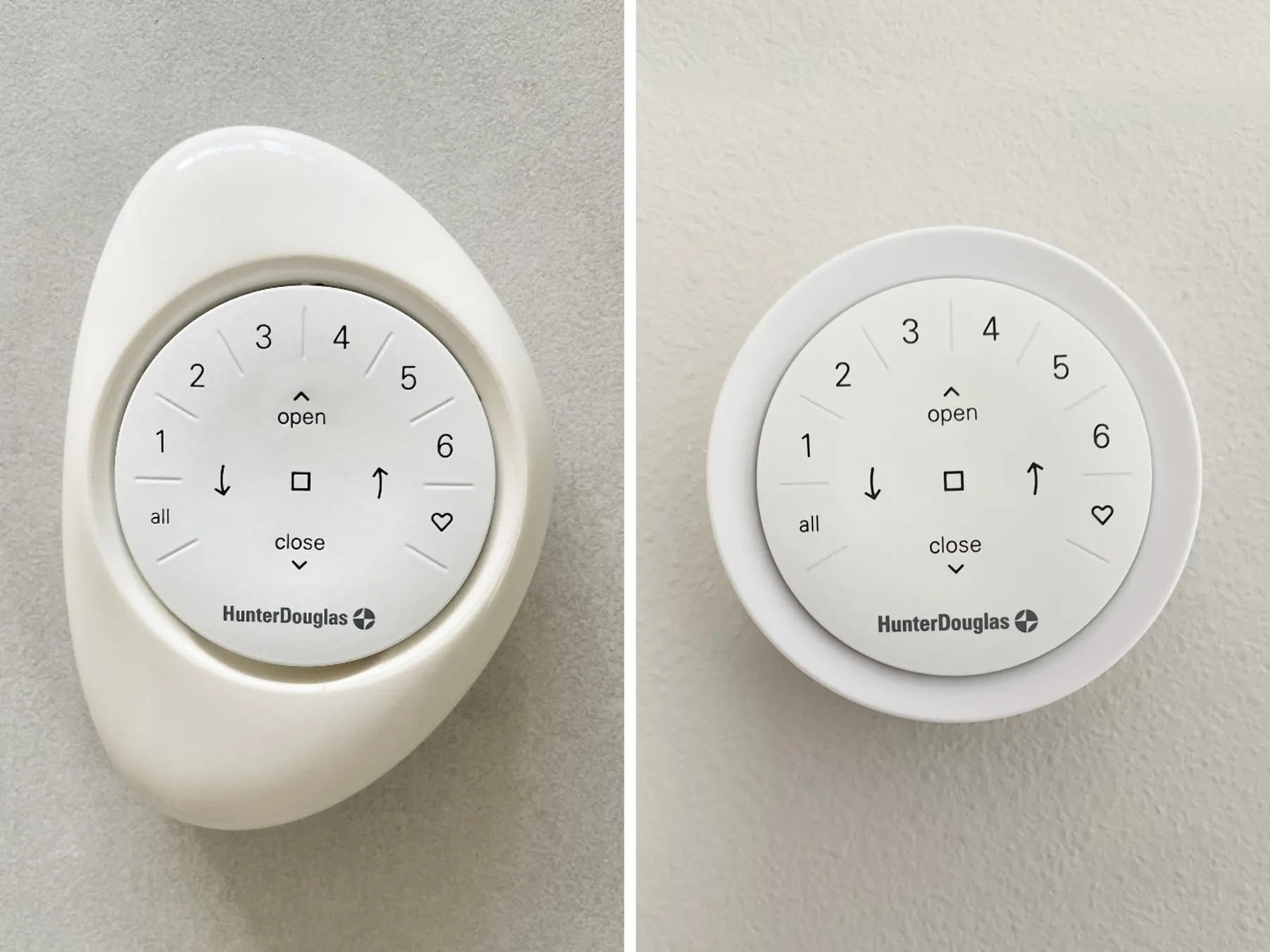
Using the Pebble® or Surface Remote
| Button | Function |
|---|---|
| Channel 1 to 6 | Each channel can operate individual or multiple shades. |
| All | Operate all shades assigned to the remote. |
| Open and Close | Move the selected shade or group of shades in open or closed position. |
| Stop (square icon) | Stop movement at the current position. |
| Arrow buttons | Only used for certain features such as top-down/bottom-up or products with tilt functionality. |
| Heart button | Favorite shade positions. Press once for Favorite 1 & twice for Favorite 2. We set the Favorite positions during installation, and they can be changed later in the PowerView App under More > Shades > Select the Shade. |
Using the PowerView App
The app lets you operate individual or several shades together. It also allows you to save positions as Scenes. Schedules can open or close shades automatically at selected times, including sunrise and sunset.
A Gateway is not required to control your shades in the home. When your phone or tablet is within range, the PowerView App communicates directly with Gen 3 shades through Bluetooth®. Remotes also work without a Gateway or internet connection.
Using a Gateway
A Gateway enables RemoteConnect™ away-from-home control and compatible smart-home integrations. It can also improve range, response, and schedule reliability in larger or multi-shade homes. The number and placement of Gateways depend on shade count, home layout, and building materials.
| System | What It Provides |
|---|---|
| No Gateway | Local app control through Bluetooth and remotes. No away-from-home control or smart-home integrations. |
| Gen 3 Gateway | Enables away-from-home control, compatible smart-home integrations, and more reliable schedule timing. Improves coverage in larger or multi-shade homes. |
Power Source & Battery Care
The PowerView App displays an estimated battery level and can provide low-battery notifications. Slower-than-normal shade movement may also indicate low power. If the app reports low power or the shade begins moving slowly, charge the rechargeable battery or replace all disposable batteries.
Shade Power Sources
PowerView shades use several types of power sources. The table below explains how each option works and what maintenance it requires.
| Power Source | What You Need To Know |
|---|---|
| Disposable AA batteries | Typically 12 per battery pack depending on product/size of the shade. Duracell or Energizer alkaline batteries are recommended. Do not use rechargeable AA batteries. |
| External rechargeable battery wand | The wand is mounted behind the shade. Remove and connect to the Hunter Douglas charger. Charging usually takes approximately 2-3 hours. Many shades with AA batteries can be upgraded to a rechargeable wand. |
| Internal rechargeable battery | The battery is concealed inside the headrail or tube. Charge it in place by connecting the charger directly to the shade, similar to charging a phone. Charging usually takes approximately 2 hours. |
| Solar Charger | A window-mounted charger uses daylight to charge the rechargeable battery, eliminating manually charging in most conditions. Can be added to existing PowerView shades using a rechargeable battery. |
| Plug-in or hardwired | Plug-in uses a nearby outlet. Hardwire requires power at the window completed by a qualified electrician. No charging required. Shades will not work without power. |
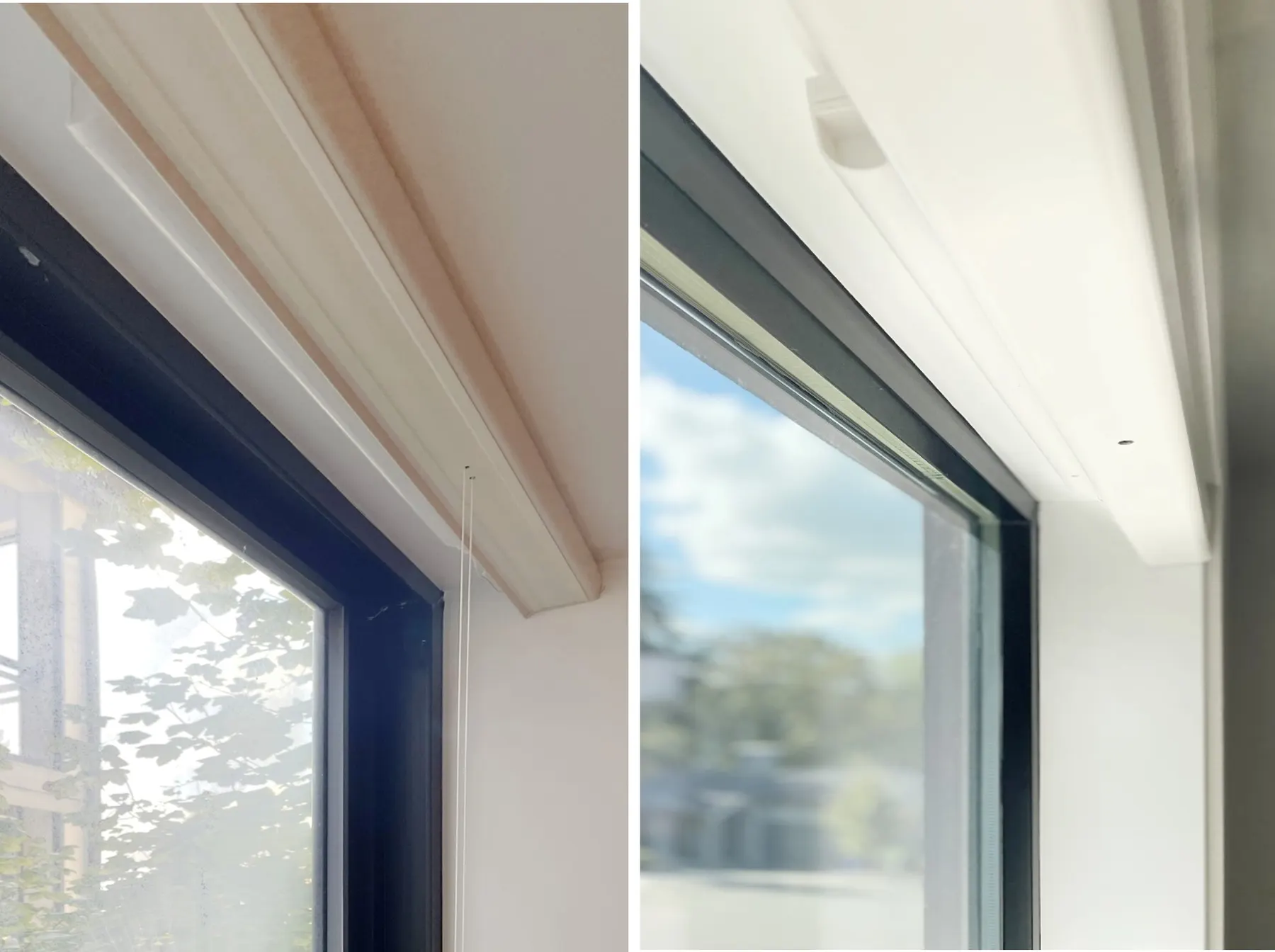
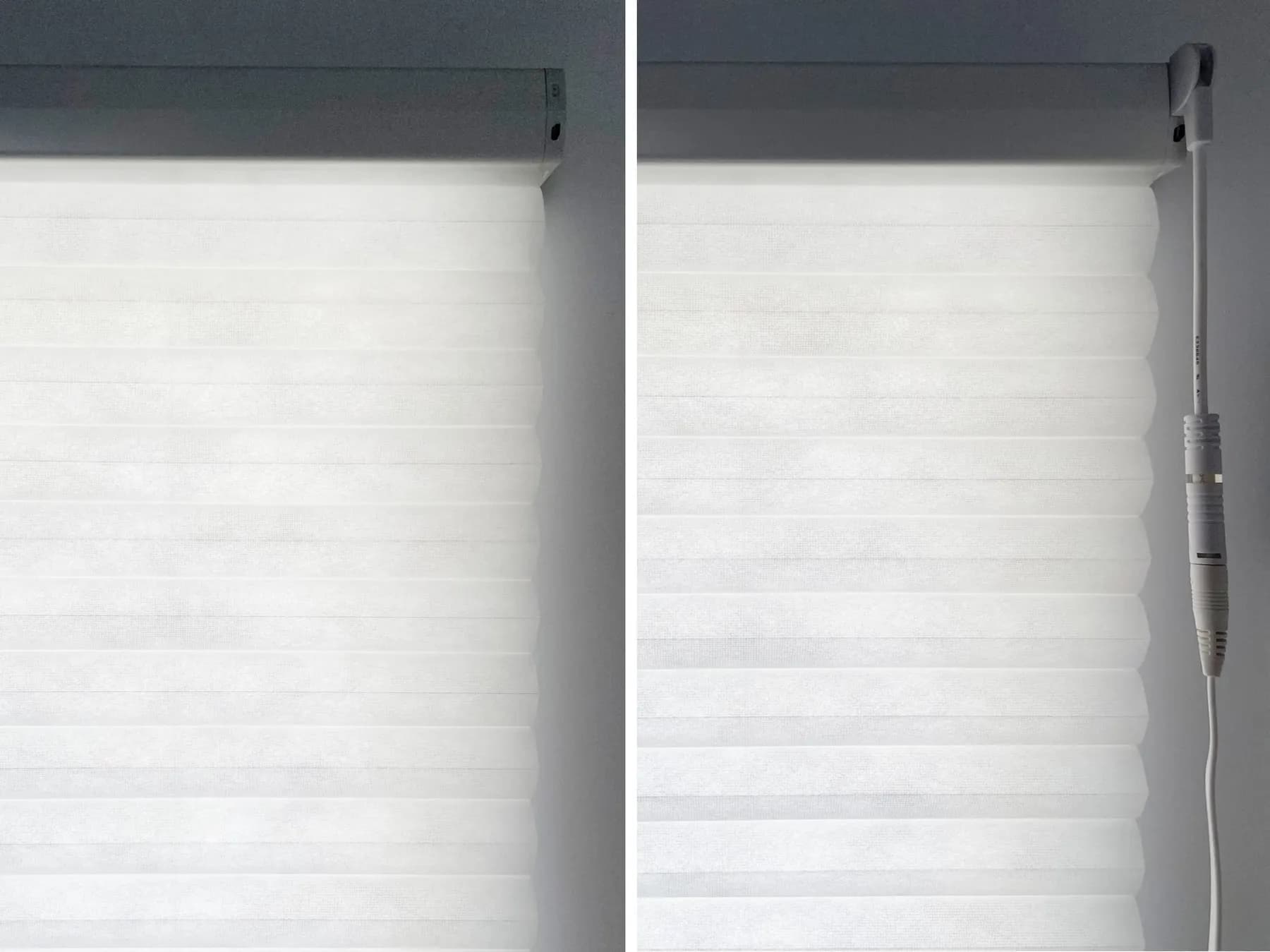
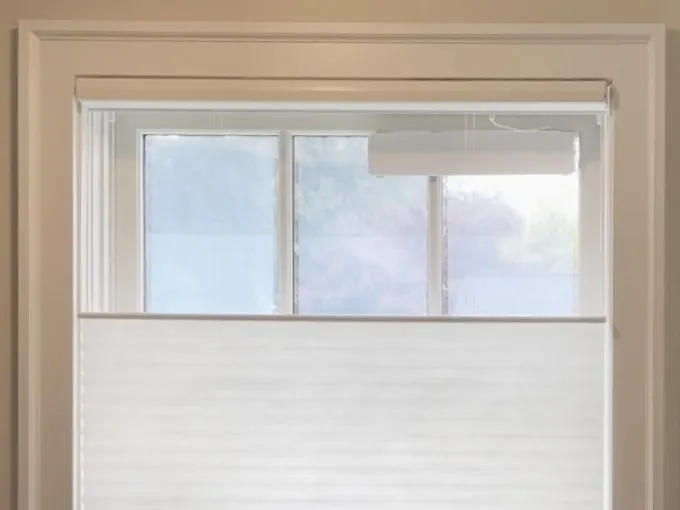
Many battery powered shades operate for about one year between charges or battery replacements depending on shade size and frequency of use. Hunter Douglas rates removable and internal rechargeable batteries for approximately 500 charging cycles. Actual service life varies with temperature, use, and charging conditions.
Remote Batteries
The handheld or wall mounted remote uses two CR2032 coin-cell batteries. Replacing them does not erase the remote’s settings.
Quick PowerView Gen 3 How-Tos
Use the steps below as a quick reference for common PowerView Gen 3 shade, remote, Gateway, and account tasks.
| How To | Quick Steps |
|---|---|
| Check shade battery level | More > Shades > Select the shade > Power |
| Change Favorite position | More > Shades > Select the shade > Favorite 1 or Favorite 2 > Position shade > Done |
| Add new shade | More > Setup Wizard > Follow prompt to discover and add shade |
| Recalibrate shade | More > Shades > Select shade > Advanced Options > Calibrate Shade |
| Add a remote | More > Accessories > Remotes > + > Follow prompts > Sync |
| Program or change remote channel | More > Accessories > Remotes > Select the remote > Select the channel > Edit > Select the shades > Done > Sync |
| Clone a remote | More > Accessories > Remotes > + > Assign the same shades to the same channels > Sync |
| Replace an existing remote | Add and test the new remote > Select the old remote in the app > Delete |
| Add another user | More > Users > + > Enter user information and permissions |
| Check firmware updates | More > Firmware Updates > Install available updates |
| Reconnect a Gateway | More > Accessories > Gateways > Select the Gateway > Info & Options > Forget This Network > Set Up Wi-Fi |
| Send a diagnostic log | Contact Amazing Blinds by Armi or Hunter Douglas. When requested: More > Settings > Advanced > Send Logs. Open Log History and provide Log ID. |
PowerView Gen 3 Troubleshooting: Basic Checks
If your shade, remote, app, or Gateway is not working as expected, check that the PowerView App and system firmware are up to date, then begin with the basic checks below.
If the problem continues, contact us or Hunter Douglas Consumer Support using the information at the end of this guide.
| Problem | What you can check |
|---|---|
| Remote has no lights | Replace both CR2032 batteries on the remote. |
| Remote lights blink or appear to spin | Replace both CR2032 batteries. Lights blinking or moving in sequence during normal use usually indicate low batteries. |
| Remote lights up, but the shade does not move | Select the correct channel and confirm that the shade has power or is fully charged. |
| Remote does not operate one shade | Confirm the shade is assigned to the correct channel in the PowerView App, then sync the remote. |
| App works, but the remote does not | Check the remote batteries and select the correct channel. In the PowerView App, go to More > Accessories > Remotes, select the remote, confirm the shade assignments, and tap Sync. |
| App does not control the shades while you are home | Confirm Bluetooth is enabled, move the phone or tablet closer to the shades, and close and reopen the app. |
| Shade moves slowly or intermittently | Fully charge the rechargeable battery or replace all disposable batteries. If using a solar charger, confirm that the panel and cable are connected and unobstructed. |
| Shade does not move at all | Confirm that the shade has power. If it uses a removable battery wand, test it with a compatible wand that is known to be working. If the shade operates, the original wand or batteries may be the problem. |
| Shade stops at the wrong position or does not fully open or close | Check for a visible obstruction. If the area is clear, recalibrate the shade in the PowerView App under More > Shades > select the shade > Advanced Options > Calibrate Shade. |
| Shade is uneven or out of alignment | Stop the shade, check for a visible obstruction, and avoid operating it repeatedly. |
| Away-from-home control does not work | Confirm that the home internet is working, the Gateway has power and is connected to the internet, and your phone or tablet has an internet connection. If the home’s Wi-Fi name or password changed, the Gateway may need to be reconnected. |
Legacy PowerView: What You Need To Know
Legacy PowerView includes the original Hub introduced in July 2015 and the Gen 2 Hub introduced in September 2017. PowerView Gen 3, which uses a Gateway instead of a Hub, was introduced in May 2022. There may be some overlap between Legacy and Gen 3 products during the transition, so the purchase date alone may not confirm which system you have.
What Legacy PowerView Can Do
- Operate with Legacy Pebble and Surface remotes.
- Connect to the PowerView App through a compatible Legacy Hub.
- Create Rooms, Scenes, and Schedules.
- Provide away-from-home Scene control and compatible smart-home integrations through the Hub.
- Use Legacy repeaters to extend signal range.
- Be retrofitted with an external rechargeable battery wand and solar charger when compatible. Process may require drilling or shade removal.
Legacy PowerView Limitations
- Legacy shades cannot use Gen 3 remotes or connect to a Gen 3 Gateway.
- Legacy and Gen 3 systems can use the same PowerView account and app, but each is set up as a separate Home with its own Rooms, Scenes, and Schedules.
- Legacy does not support Gen 3-style ownership transfers or separate user invitations.
Frequently Asked Questions About PowerView Shades
Not if you plan to use only a remote. A PowerView account is required to set up or access a Gen 3 Home in the app, but our installer will complete the initial setup for you. However, if you want app access, including Scenes and Schedules, we recommend creating one so we can transfer ownership of your Gen 3 Home to you.
No. While you are home and within range, the PowerView App can communicate directly with Gen 3 shades through Bluetooth. A Gateway is required for away-from-home control and compatible smart-home integrations. It can also improve coverage and reliability in larger or multi shade homes.
No. Our installer can set up your shades and remote, allowing you to operate them without downloading the app. The remote communicates directly with the shades and does not use Wi-Fi or the internet. You can add the app later if you choose.
How To Get Help
Hunter Douglas PowerView motorization components are covered for eligible defects for 5 years from the date of purchase. This manufacturer coverage applies to the original retail purchaser.
If you are a past client and need assistance with PowerView products, contact us or give us a call at 206-801-6010. You may also call Hunter Douglas Consumer Support directly for technical support at 800-789-0331 from Monday through Friday, 9:00 a.m. to 8:00 p.m. ET.
Information We Need to Assist You
- The year it was installed.
- The room and shade number (1 being the leftmost of each room).
- Detailed explanation of the issue/s.
- Photo or video showing the shade and the problem.
Manufacturer Resources
This guide reflects current Hunter Douglas PowerView information as of September 2026. For product-specific instructions, refer to the official manuals and resources below:
• To set up your PowerView Gen 3 account: PowerView Gen 3 Setup Guide
• For remote buttons, channels, Favorites, and troubleshooting: PowerView Gen 3 Remote Guide
• For away-from-home operation: RemoteConnect Guide
• To find current remote, Gateway, and product documents: PowerView Manuals
• To identify whether you have PowerView Gen 3 or Legacy PowerView: PowerView System Comparison Guide
• For information about Solar Chargers: Hunter Douglas Solar Charger FAQ
• For PowerView motorization warranty coverage: Hunter Douglas Warranty Information
• To search support information by product or issue: Hunter Douglas Help Center
• To charge a rechargeable battery: Charge a Rechargeable Battery
Last reviewed: November 2026
Explore Custom Blinds, Shades, Shutters, and Automation
Every home has a unique style, story, and set of needs.
Whether the priority is design, smart-home integration, energy efficiency, privacy, room darkening, ease of operation, or long-term durability, we offer personalized recommendations from a broad selection of window treatments.
We help you explore custom blinds, shades, shutters, and automation to create window covering solutions that complement your home, address your priorities, and align with your investment range.